Autocomplete
SweetPad wires Xcode's build information into SourceKit-LSP so you get real autocomplete, jump-to-definition, hover docs, and Swift compiler diagnostics in VSCode.
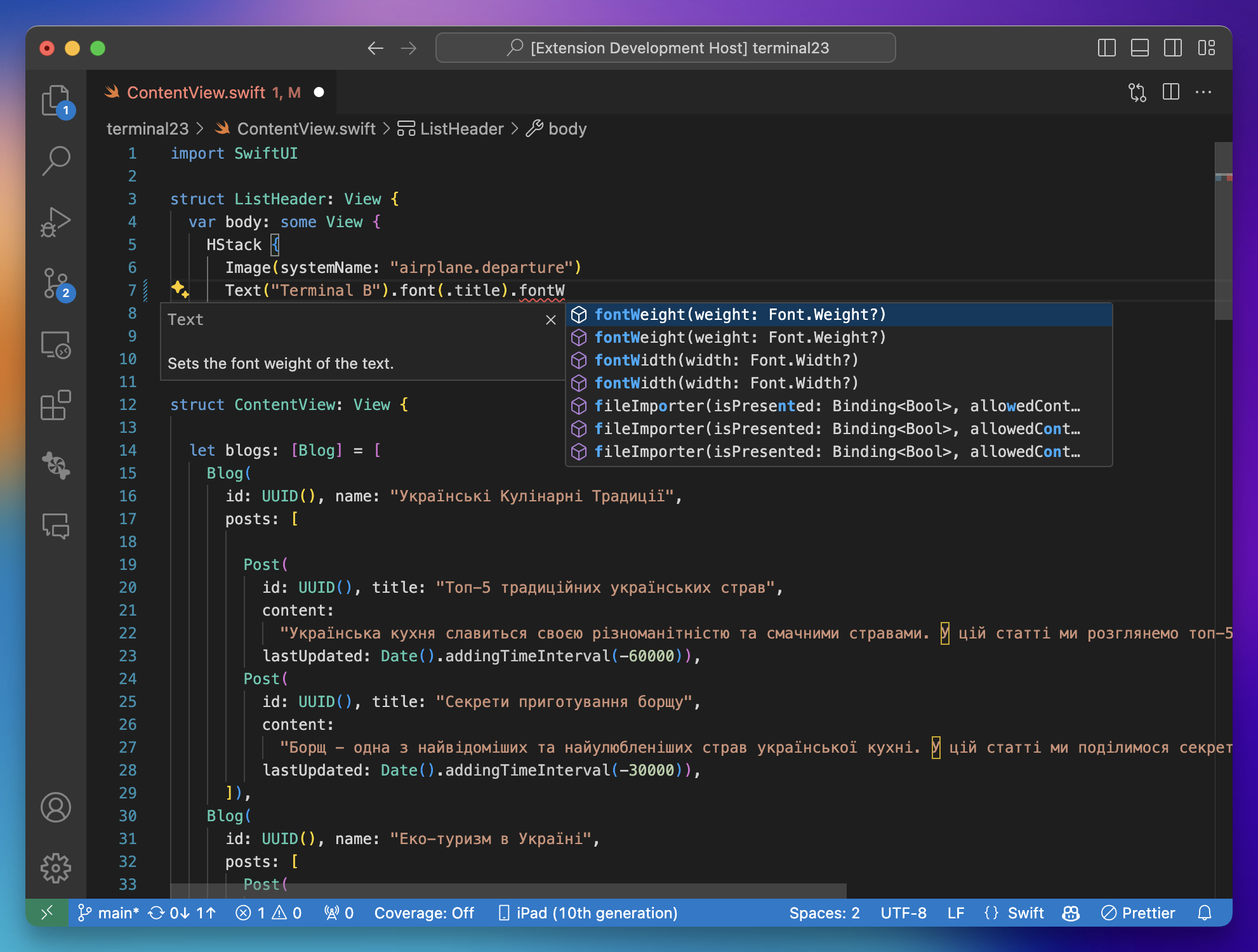
SourceKit-LSP needs a build server to tell it how each file is compiled. SweetPad supports two:
- SweetPad's own build server (the default) reads compiler arguments straight from the project, so
autocomplete works without building first. Runs through the
sweetpadCLI. Handles.xcodeprojand.xcworkspace. - xcode-build-server is a battle-tested external tool that parses Xcode build logs. Install it separately, and build the project once before autocomplete comes alive.
Swift Packages don't need any of this, because SourceKit-LSP understands Package.swift natively. If your workspace root is
a Swift Package, autocomplete works as soon as the Swift extension
is installed.
Setup with the built-in build server (default)
-
Install the Swift extension from the Marketplace, and the
sweetpadCLI that runs the build server:brew install sweetpad-dev/tap/sweetpad -
From the command palette, run
> SweetPad: Generate Build Server Config. This writes abuildServer.jsonat the workspace root that runssweetpad bsp serve. SweetPad writes it for you on the first build too. -
Open a Swift file. SourceKit-LSP starts the server, which resolves build settings directly from the project.
After that, autocomplete should work. ✅
Already using xcode-build-server? Nothing changes for you. A workspace that has a buildServer.json written by
another tool keeps that tool, so an existing setup is never swapped out underneath you, including a
buildServer.json you maintain by hand. To move such a workspace to the built-in server, run
> SweetPad: Set up Swift code intelligence (BSP), or delete the file and build once.
> SweetPad: Diagnose BSP (Doctor) reports which server is in use and why.
A few things to know:
- The server runs through the
sweetpadCLI, so it needs to be installed:brew install sweetpad-dev/tap/sweetpad, or the Tools panel. SweetPad tells you once per workspace if it's missing, and> SweetPad: Diagnose BSP (Doctor)reports it too. - An
.xcworkspaceresolves each file against whichever member project declares its target, so a CocoaPods or multi-project workspace works the same as a single.xcodeproj. - A file that several targets compile, such as one an iOS app shares with its watchOS app, gets its compiler arguments
from the target your selected scheme builds. If the scheme doesn't settle it, the target for the selected
destination's platform wins. While you work on the iOS app, its
#if os(iOS)branches stay live, and switching the scheme or destination changes the branch autocomplete sees. - SweetPad analyzes a target that builds for more than one platform, such as an iOS and macOS app, for the selected
destination's platform. Pick My Mac and its
#if os(macOS)code gets autocomplete. For a destination the target doesn't build for, it falls back to the first of iOS, tvOS, watchOS, visionOS and macOS that the target supports. With My Mac selected, a Mac Catalyst target is analyzed as Catalyst, following how your selected scheme builds it, so its#if targetEnvironment(macCatalyst)code gets autocomplete too. - The build settings and the
-xcconfigfile insweetpad.build.args, such asSWIFT_ACTIVE_COMPILATION_CONDITIONS=STAGINGor-xcconfig ci.xcconfig, apply to autocomplete too, so the editor compiles each file the way your builds do. An oldersweetpadCLI ignores them. A-derivedDataPathin that setting, orsweetpad.build.derivedDataPath, moves the index to your builds' DerivedData. SweetPad restarts the language server when that location changes, unlesssweetpad.build.autoRestartSwiftLSPis off. Other flags in that setting don't affect autocomplete. - A Swift package takes a different route: SourceKit-LSP reads
Package.swiftand indexes it natively, so SweetPad writes nobuildServer.jsonat all. If one is already sitting in the package directory, delete it, because its presence overrides that native support. - Headers borrow the sysroot, search paths and language dialect of a neighbouring source file (the
.mbesideFoo.h, or the nearest one in the same folder), so a.hresolves even though no target compiles it directly. - The
buildServer.jsonit writes names the installed CLI, so it keeps resolving across extension updates. If the CLI itself moves or is uninstalled, SweetPad rewrites the file the next time the window loads, and> SweetPad: Generate Build Server Configdoes the same on demand.
Setup with xcode-build-server
To use the external tool instead, point the provider at it:
{
  "sweetpad.buildServer.provider": "xcode-build-server"
}
-
Install the Swift extension from the Marketplace and xcode-build-server from Homebrew:
brew install xcode-build-server --head -
From the command palette, run
> SweetPad: Generate Build Server Config. This creates abuildServer.jsonat the workspace root that points SourceKit-LSP at your Xcode build outputs. -
Build the project once (▶️ in the Build view). Without a successful build there are no build logs for
xcode-build-serverto parse, so autocomplete looks "stuck".
To go back to the built-in server, run > SweetPad: Set up Swift code intelligence (BSP). It resets the provider
and regenerates buildServer.json in one step.
When autocomplete doesn't work
Run > SweetPad: Diagnose BSP (Doctor) from the command palette. It checks the whole chain for your active
provider (buildServer.json is present and valid, the build-server tool is available, a scheme is
selected, the Xcode developer directory resolves) and prints a ✓/✗ report with a fix hint for each failure in the
SweetPad: BSP output channel.
To watch what the build server is doing, run > SweetPad: Show BSP logs. With the built-in server this opens a
live log stream; tune its verbosity with sweetpad.buildServer.logLevel (off, error, info, or debug;
debug includes the raw JSON-RPC traffic). With xcode-build-server, logging goes to a file instead, so set
XBS_LOGPATH via sweetpad.xcodebuildserver.serverEnv (see below).
Auto-regenerate buildServer.json
By default SweetPad regenerates buildServer.json whenever you build or change the default scheme, which helps if you
switch between schemes frequently. If you maintain a custom buildServer.json (e.g. backed by Swift Build, or a
language server with background indexing), turn that off so SweetPad doesn't overwrite your file:
{
  "sweetpad.build.autoGenerateBuildServerConfig": false,
  "sweetpad.build.autoRestartSwiftLSP": false
}
The two settings are paired: autoGenerateBuildServerConfig controls the file; autoRestartSwiftLSP controls
whether the Swift language server is restarted after each build / scheme regeneration. Disable both if you have a
build server that does its own indexing.
The explicit > SweetPad: Generate Build Server Config command always regenerates and restarts the LSP, regardless
of these settings.
Diagnostics from the build log
SweetPad surfaces Swift compiler errors and warnings from the build log as inline VSCode diagnostics: squiggles in the editor and entries in the Problems panel. They're on by default.
If a third-party tool is providing diagnostics (Swift LSP with background indexing, or a custom error reporter) you may want to silence SweetPad's pass to avoid duplicate squiggles:
> SweetPad: Disable LSP Diagnosticsturns the live diagnostic stream off for this workspace.> SweetPad: Enable LSP Diagnosticsturns it back on.
Both drive xcode-build-server's logging, so they apply only to that provider. With the built-in server, turn up
sweetpad.buildServer.logLevel and run > SweetPad: Show BSP logs instead.
Use a custom xcode-build-server
If you've installed xcode-build-server somewhere outside PATH, or you're using a fork, point SweetPad at the
binary you want:
{
  "sweetpad.xcodebuildserver.path": "/opt/homebrew/bin/xcode-build-server"
}
You can also pass environment variables to the long-running server process that SourceKit-LSP launches, which helps for turning on the server's own logging, or pointing it at a non-default cache:
{
  "sweetpad.xcodebuildserver.serverEnv": {
    "XBS_LOGPATH": "/tmp/sweetpad-xbs.log"
  }
}