Destinations
In SweetPad, a destination is anywhere you can run your app: a specific simulator or a connected device. Under
the hood SweetPad uses xcrun simctl and xcrun devicectl to manage them. A few destinations stand for a whole
platform instead of one device, and those only build.
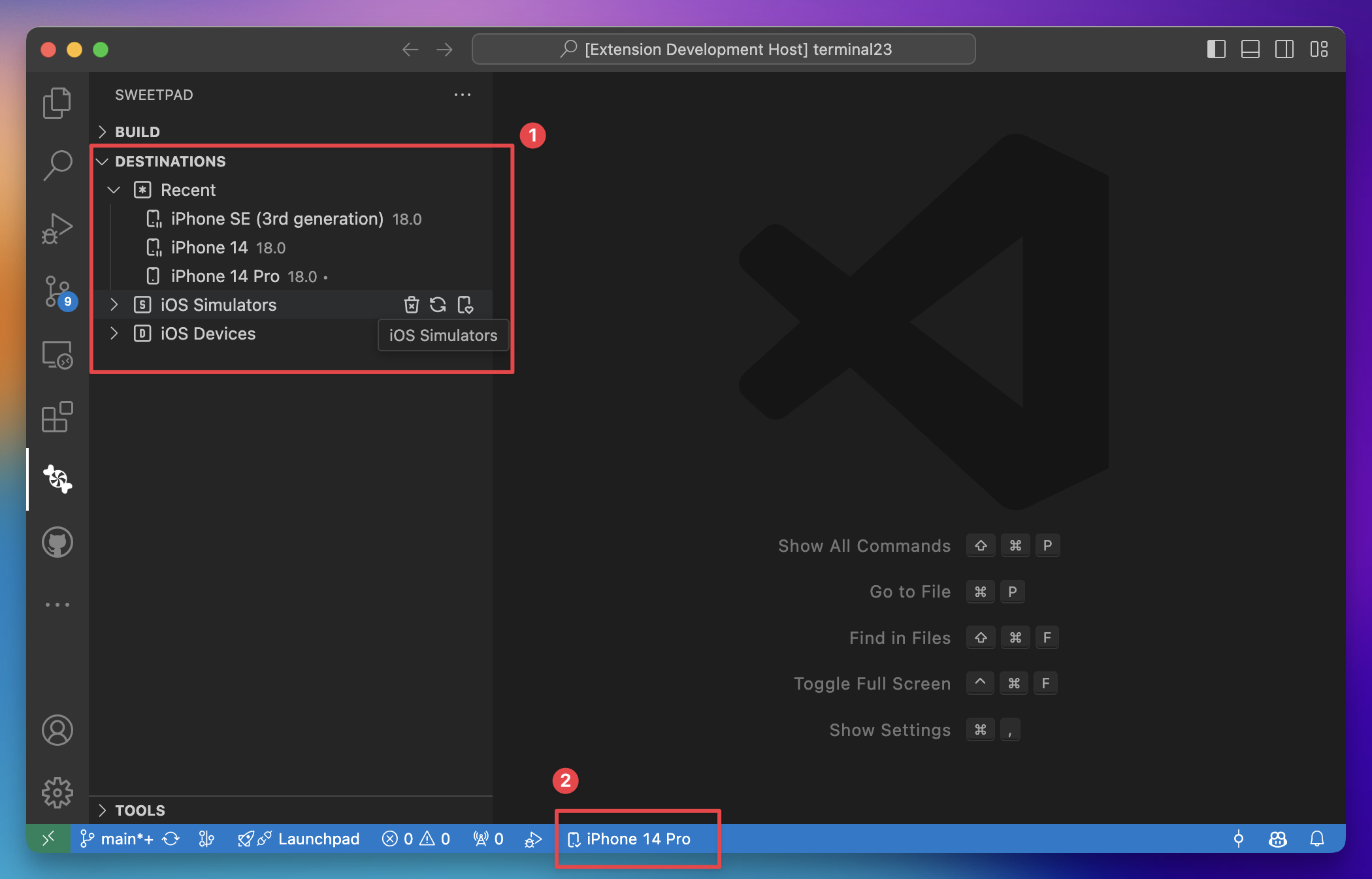
The Destinations view in the sidebar consolidates everything in one place [1], grouped by platform:
- Recent: destinations you've used lately (shown when non-empty).
- iOS / watchOS / tvOS / visionOS Simulators: every installed simulator, one section per OS.
- macOS: your local Mac as a destination for Mac apps.
- iOS / watchOS / tvOS / visionOS Devices: physical devices paired with this Mac.
- Generic (build-only): Xcode's "Any iOS Device", "Any Mac" and the rest. They pin no device, so you can build or archive for a platform without one. Nothing runs on them. See Build for a whole platform.
A status bar item at the bottom of the VSCode window shows the active destination and lets you switch it with one click [2].
Pick a destination
You can select the destination in three ways:
-
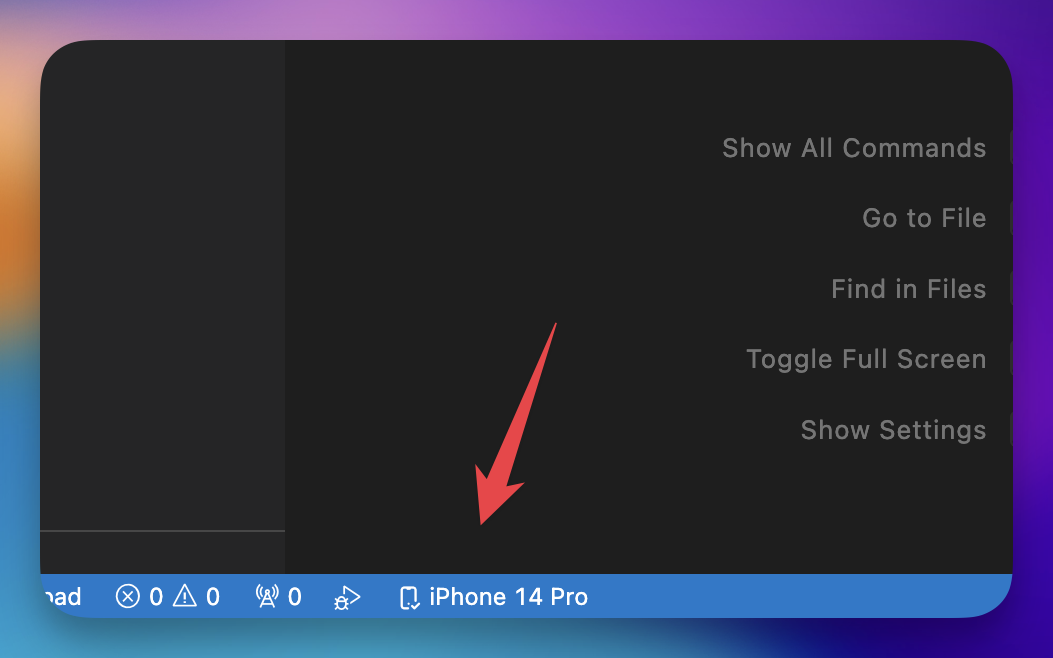
Status bar: click the destination indicator in the status bar and pick from the list.
-
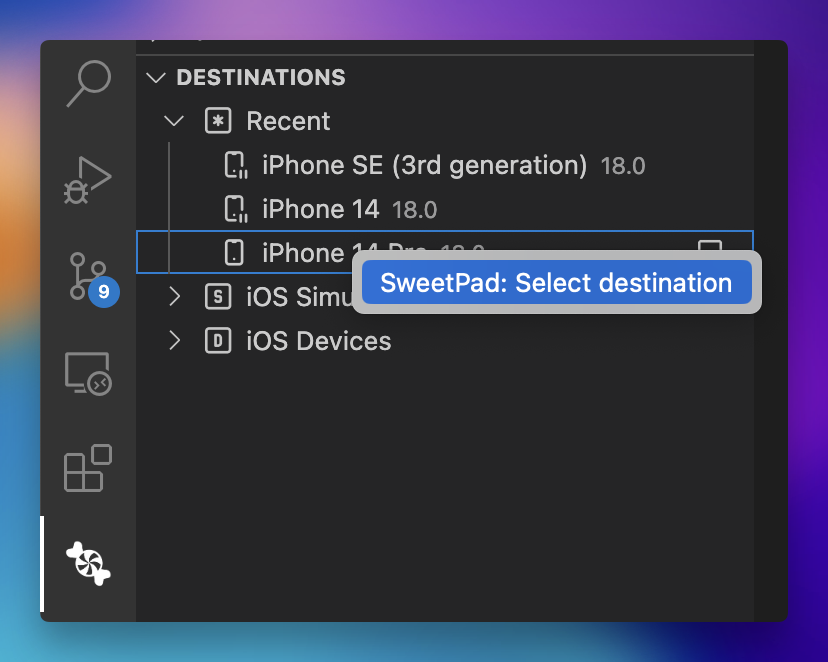
Sidebar: right-click a destination in the Destinations view and choose SweetPad: Select destination.
-
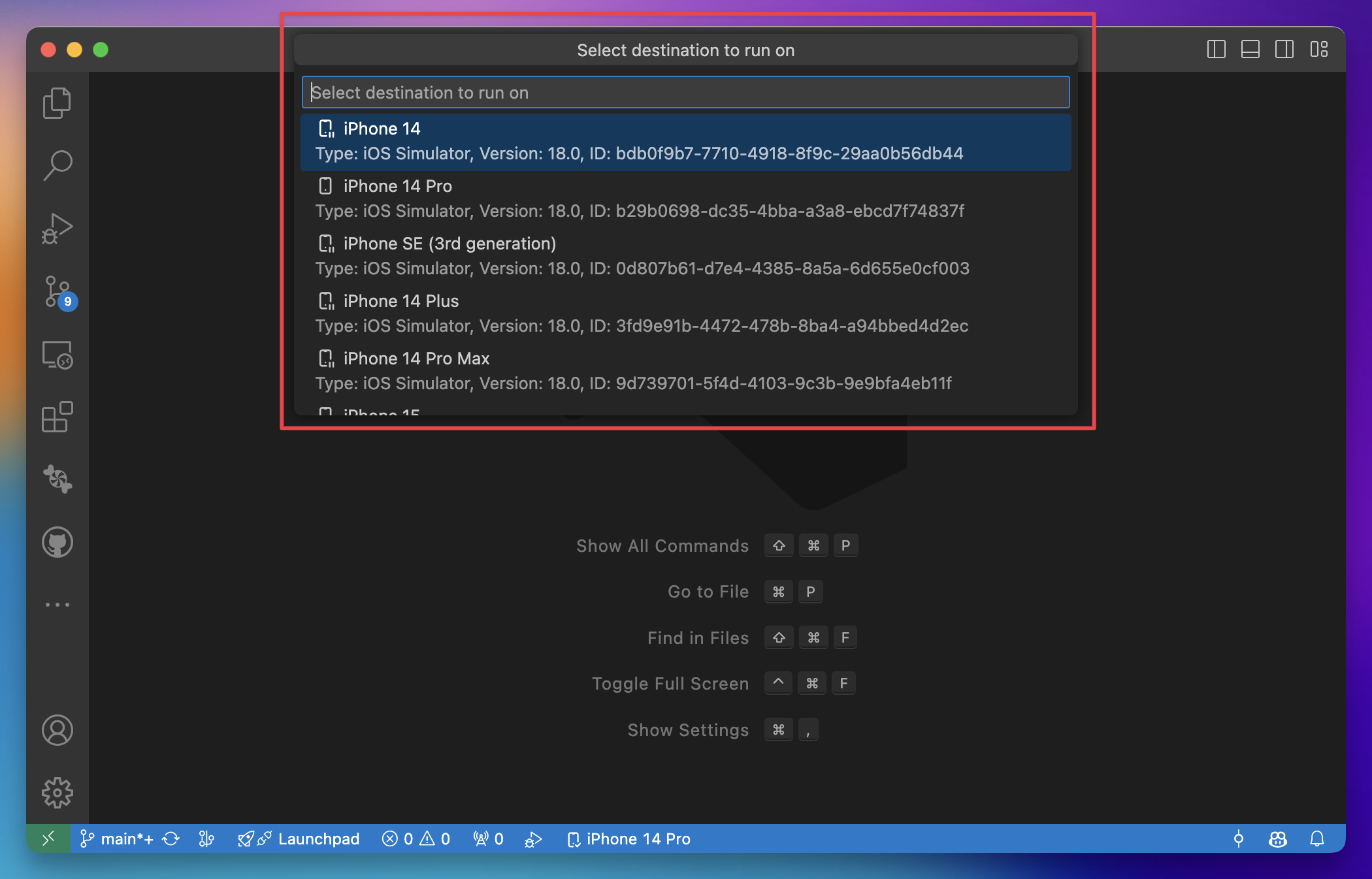
Just run the app: if no destination is set, SweetPad prompts for one the first time you launch.